Getting started
Your first event in 9 short steps
About 10 minutes. You can save as a draft at any point — nothing is public until you publish.
1Create your event
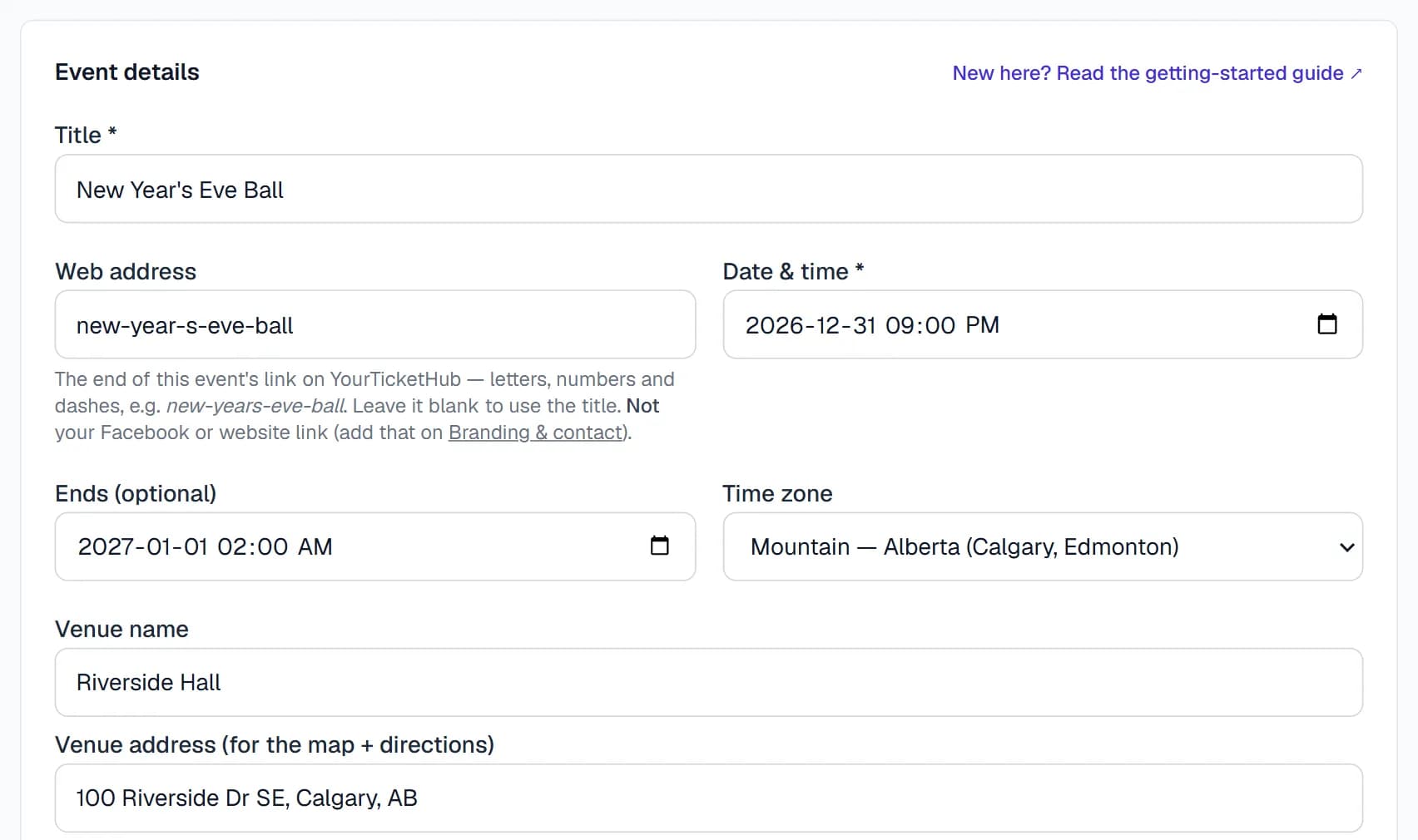
In your dashboard, click + Create event and fill in the title, date and time, venue and address (the address puts a map and directions on your page), a description and your poster.
- Web address — leave it blank. We make a short one from your title (e.g. new-years-eve-ball). It is not the place for your Facebook or website link; put those on Branding & contact.
- Click Create event. It's saved as a draft — only you can see it.
2Add ticket types (your prices)
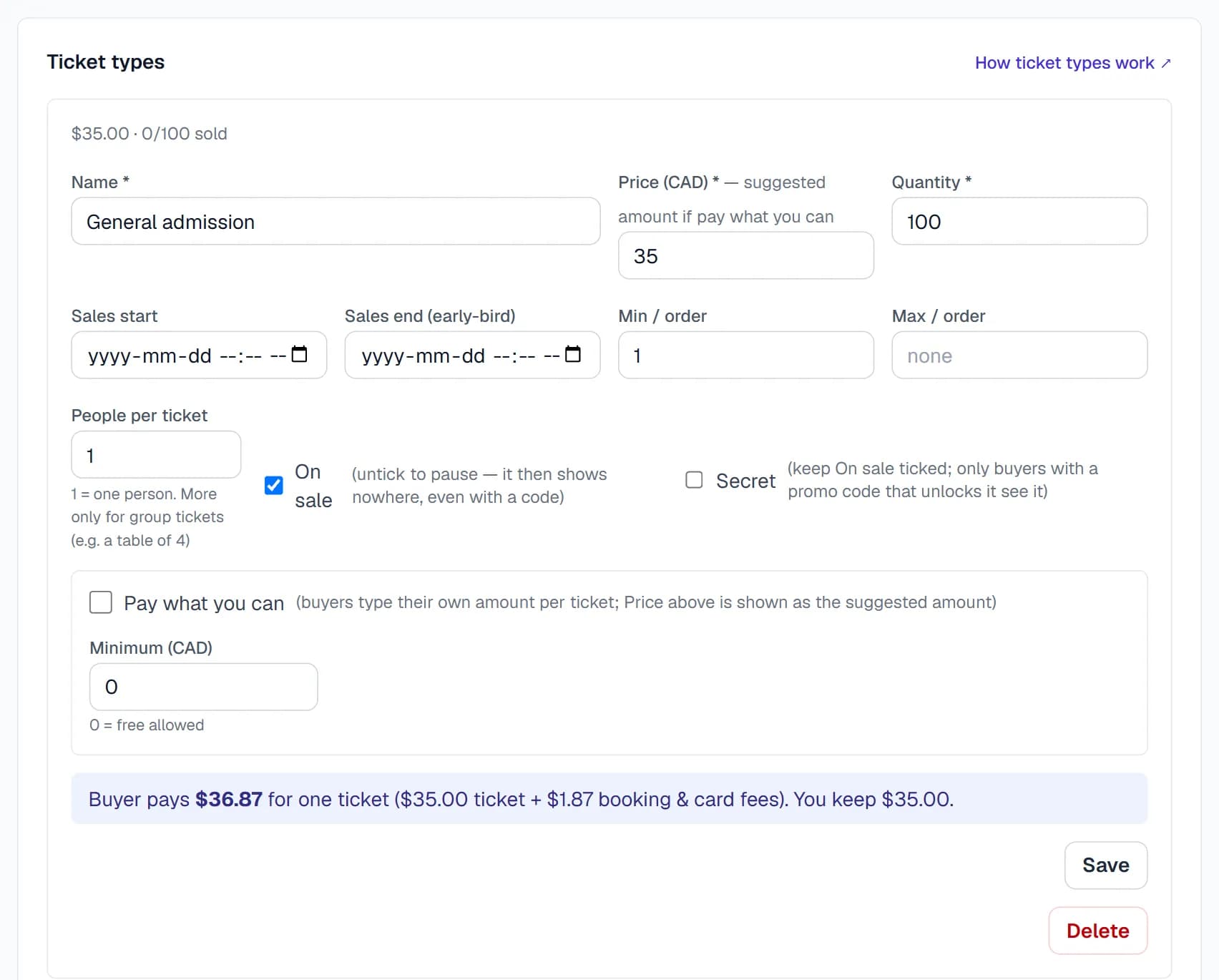
Your prices go here — under Ticket types on the event page. Open + Add ticket type and fill in a name, the price and how many you're selling, then click Add. Add one for each kind of ticket (e.g. Early bird, General, VIP).
- People per ticket — leave at 1. Only change it for group tickets (a table of 4 = 4): one QR code then lets that many people in, and the booking fee is charged for each of them.
- Sales end — for an early-bird price: it stops selling at that time and the next ticket type takes over.
- Secret — only buyers with a promo code that unlocks it see it (e.g. sponsors, members).
- Pay what you can — buyers type their own amount; your price is shown as the suggestion.
Under each ticket type you'll see exactly what the buyer pays and what you keep.
3What buyers pay
You keep your full ticket price. Our booking fee ($0.50 per person) and the card processing fee (Square 2.8% + 30¢, Stripe 2.9% + 30¢) are added on top at checkout. For a $35.00 ticket the buyer pays $36.84 with Square or $36.87 with Stripe, and you receive about $35.01.
Extra fee you add on top (the service charge, near the bottom of the event form) is optional — an extra amount you keep on top of every ticket, per person. It is not the ticket price. Most events leave it empty.
If you type your ticket price into the extra fee box, buyers pay it twice. The event page warns you if the extra fee looks like a price.
Try your own numbers on the fee calculator.
4Connect payments
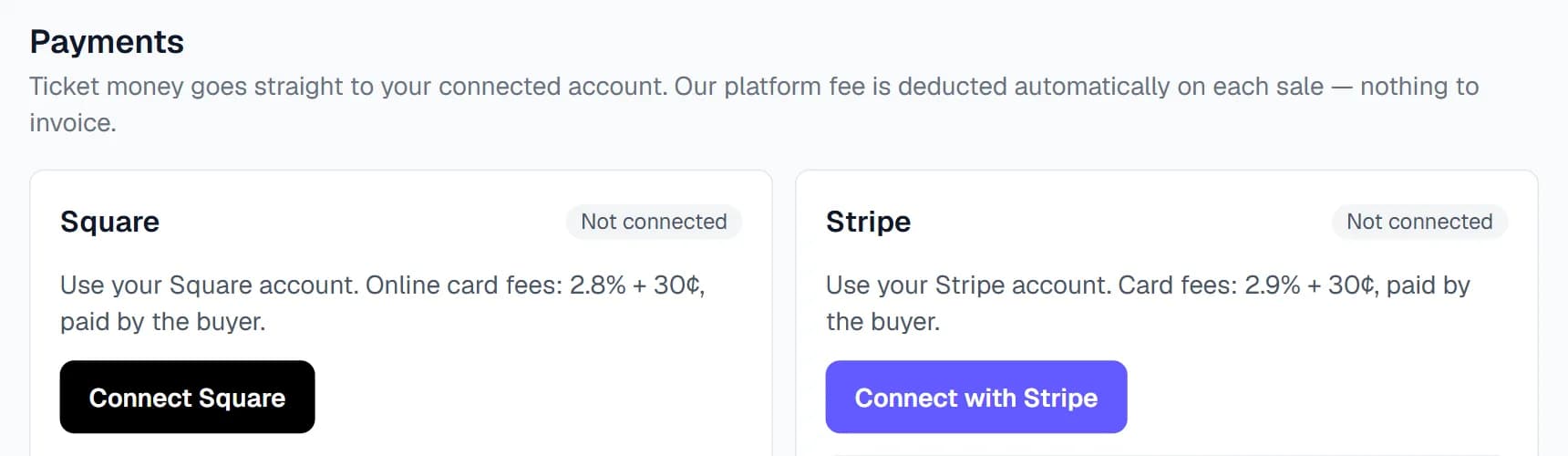
On Payments, connect your Square or Stripe account. Ticket money goes straight to you on their normal payout schedule. Then, on your event, choose that account under Payments and save.
No Square or Stripe account? Ask us to handle payments and we'll pay you after the event. Free events don't need a payment account.
5Publish
Before you publish, check:
- At least one ticket type with the right price and quantity.
- A payment account chosen under Payments (for paid tickets).
- The page looks right — click Preview ↗ at the top of the event page.
Then set Status to Published — on sale and click Save event. The top link changes to Public page ↗ — that's your event link.

6Your branding & contact
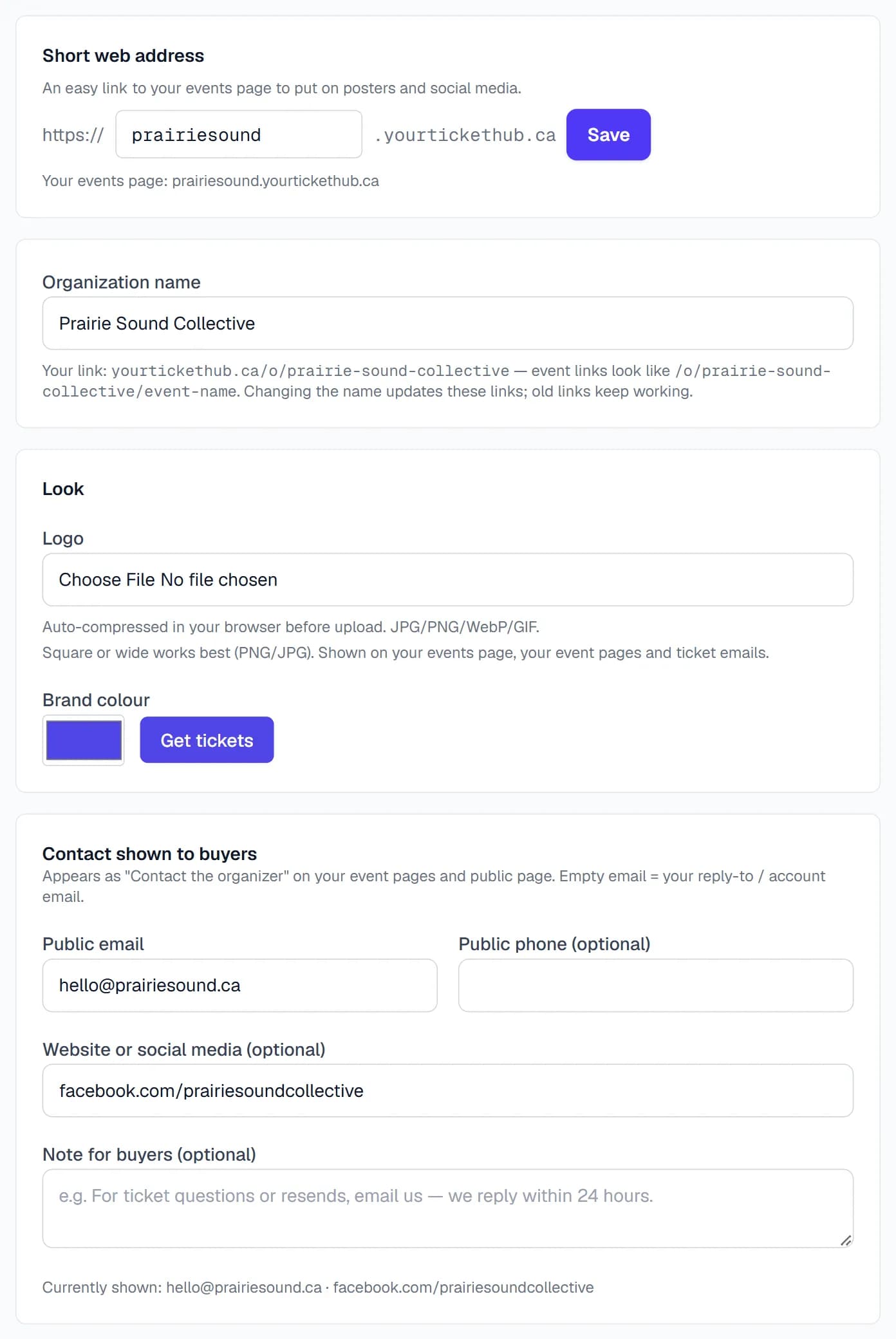
On Branding & contact (once — it applies to all your events):
- Short web address — e.g. yourname.yourtickethub.ca, an easy link to all your events for posters and social media. Press Save next to it.
- Logo and brand colour — shown on your event pages, your events page and ticket emails.
- Contact shown to buyers — the email (and phone) buyers use to reach you about refunds or tickets.
- Website or social media — this is where your Facebook, Instagram or website link goes (not the event's Web address).
8At the door
- Buyers get their tickets by email with a QR code and a ticket ID.
- Open Scan on your phone and scan each ticket — duplicates are blocked. You can also type the ticket ID or search by name.
- Helpers: add them on Team as door staff, or send a Volunteer link (on the event page) — no account needed.
9Common mistakes
- Facebook link in Web address — leave Web address blank; add your links on Branding & contact.
- Ticket price typed into the extra fee (service charge) — prices go under Ticket types; leave the extra fee empty.
- People per ticket set above 1 — only for group tickets. Otherwise each ticket lets several people in and buyers pay the booking fee for each.
- "Send ticket IDs only" ticked — only for memberships. Leave it off so buyers get QR tickets.
- Publishing with no ticket types — add at least one first.
Stuck? We're happy to help.
Send us a message from Help in your dashboard, or email support@yourtickethub.ca.